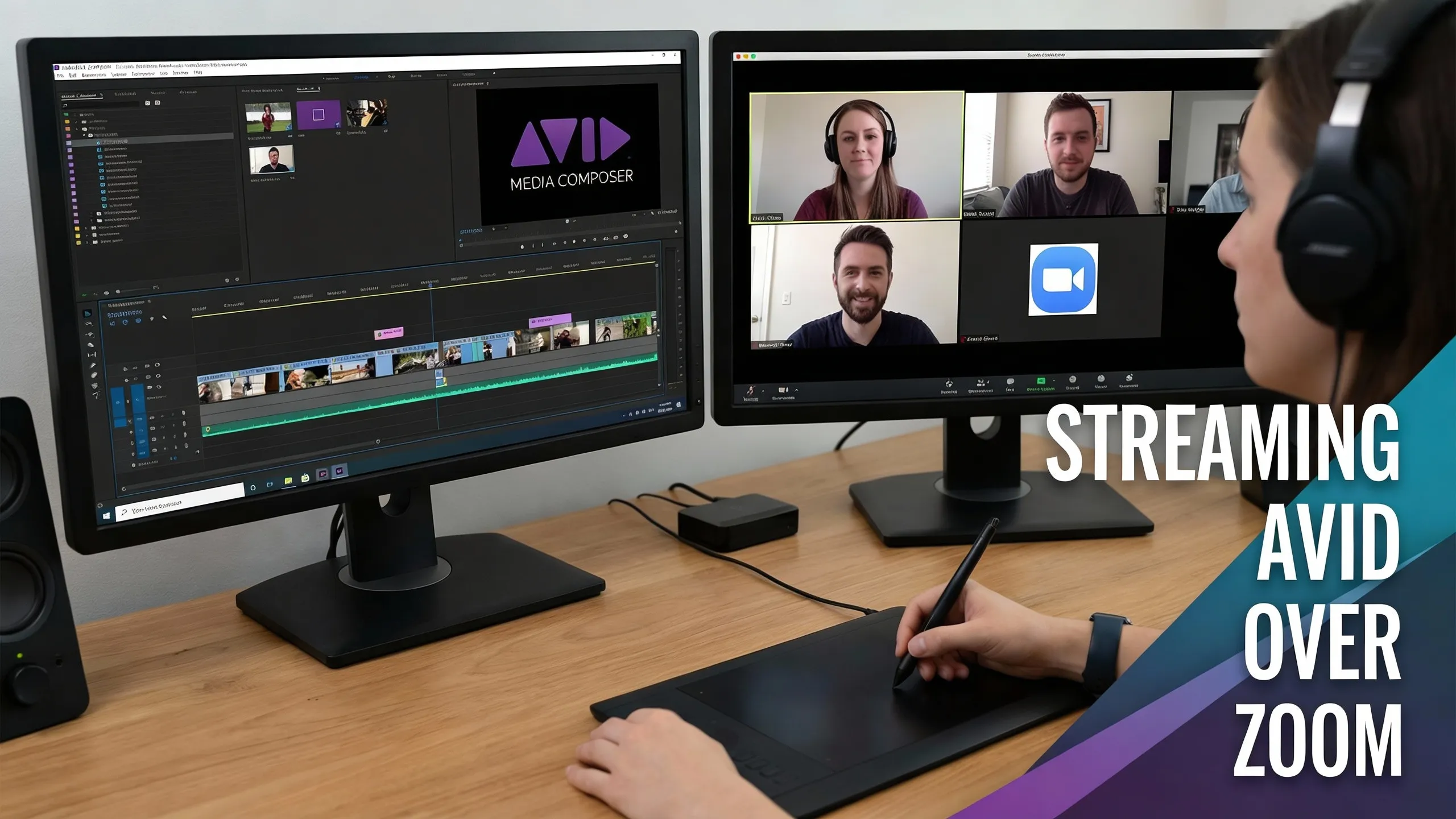
# How to Get Better Editing Sessions Streaming AVID Over Zoom
Remote video editing has evolved from pandemic necessity to industry standard. Today's post-production teams are spread across different locations by choice, leveraging talent regardless of geography.
Yet one challenge persists: how do you effectively share your AVID Media Composer workspace when your team can't physically gather around the same monitor?
While video conferencing has become second nature for meetings, streaming actual editing sessions requires more sophisticated solutions. Your collaborators need to see every cut, transition, and color adjustment in real-time, something basic screen sharing often fails to deliver.
Let's examine practical approaches editors are using to bridge this gap, from professional streaming platforms to DIY workarounds.
### Professional Streaming Solution: Evercast
[Evercast](https://www.evercast.us/) stands out as a purpose-built platform for creative collaboration. Unlike general video conferencing tools, it's specifically engineered for media workflows. The platform streams your complete workspace with minimal delay (typically under 150 milliseconds), supporting high-quality video up to 4K resolution with surround sound capabilities.
Key features include timestamped annotations, multi-source streaming for switching between applications, and native integration with editing software. Participants can join sessions through web browsers without installing software, though dedicated apps exist for various devices. Major studios have adopted Evercast, making it a trusted solution in professional environments.
However, this comes at a premium price point that may not suit all budgets, particularly for independent editors or small production houses.
### DIY Approach #1: NDI Network Streaming on Windows
For Windows users running AVID Media Composer 2018.7 or later, the built-in NewTek NDI functionality offers a workaround. This network-based protocol transmits audio and video over standard networks.
Setup process:
1. Enable the OpenIO\_NDI stream within Media Composer
2. Install NewTek NDI tools on a second machine
3. Configure NDI Virtual Input to receive the Media Composer stream
4. Route this input through your conferencing software
The reality? This method demands significant technical knowledge and ideally two separate computers. You're limited to sharing only the preview window rather than your complete interface. Performance issues are common, with noticeable delays that complicate frame-specific feedback. The high bandwidth requirements can strain network resources, potentially causing dropouts during critical review sessions.
### DIY Approach #2: OBS Virtual Camera for macOS
Mac users often turn to [OBS](https://obsproject.com/) (Open Broadcaster Software) as an intermediary solution. This free broadcasting software can capture your NDI stream and route it to conferencing platforms.
The workflow involves:
1. Installing OBS on your Mac
2. Activating NDI output in AVID
3. Configuring OBS to capture the NDI stream
4. Creating a virtual camera output
5. Selecting this virtual camera in your conferencing app
While more accessible than the Windows NDI method, OBS introduces its own complications. Processing demands can overwhelm your system, especially when running resource-intensive editing software simultaneously. Video quality often suffers, and collaborators lack tools for precise frame marking or annotation. The setup complexity can frustrate less technical team members.
### DIY Approach #3: Optimized Zoom Screen Sharing
Before investing in specialized solutions, many teams attempt to maximize Zoom's native capabilities. While not ideal for professional editing, certain optimizations can improve the experience:
Configuration tips:
* Enable "Optimize for video clip" in sharing preferences
* Disable "Limit frame rate" options
* Use wired ethernet connections for all participants
* Close unnecessary applications to free system resources
* Consider upgrading to Zoom's higher-tier plans for better bandwidth allocation
* Use Zoom's annotation tools for basic marking capabilities
Some teams report modest improvements by:
* Sharing only the preview monitor rather than the entire desktop
* Recording sessions locally for later frame-accurate review
* Using Zoom's remote control feature for direct manipulation
* Scheduling reviews during off-peak hours for better network performance
Despite these optimizations, fundamental limitations remain. Compression artifacts, color accuracy issues, and audio sync problems make this approach suitable only for rough cuts or preliminary discussions rather than detailed color grading or fine editing work.
### Making the Right Choice
Your selection depends on several factors:
Budget constraints: Professional solutions require subscription fees, while DIY methods trade cost savings for setup complexity and performance limitations.
Technical expertise: Some workarounds demand significant technical knowledge that may exceed your team's comfort level.
Project requirements: High-stakes commercial projects justify professional tools, while personal projects might tolerate workaround limitations.
Team size: Larger teams benefit from dedicated collaboration platforms with robust user management and consistent performance.
Frequency of use: Daily remote sessions warrant investing in proper tools, while occasional needs might justify temporary solutions.
---
# Agent Instructions: Querying This Documentation
If you need additional information that is not directly available in this page, you can query the documentation dynamically by asking a question.
Perform an HTTP GET request on the current page URL with the `ask` query parameter:
```
GET https://eztalks.gitbook.io/blog/tech/how-to-get-better-editing-sessions-streaming-avid-over-zoom.md?ask=
```
The question should be specific, self-contained, and written in natural language.
The response will contain a direct answer to the question and relevant excerpts and sources from the documentation.
Use this mechanism when the answer is not explicitly present in the current page, you need clarification or additional context, or you want to retrieve related documentation sections.